Bill Reminders App: Set Up Recurring Bills in ThriftyOwl
· Updated
Missing a bill payment rarely has anything to do with money. Most of the time, the money is sitting there - you simply forgot the date. A direct debit fails, a standing order moves, a one-off council tax instalment slips past, and suddenly there is a late fee to deal with and an awkward phone call to make.
A good bill reminders app removes that whole category of problem. Instead of holding twelve due dates in your head, you enter each bill once and let your household finance app do the remembering. This guide walks through how to set up recurring bill reminders in ThriftyOwl, from adding your first payment to reviewing your month at a glance.
Why do recurring bill reminders work better than willpower?
Because a reminder warns you before a bill is due, and willpower and memory do not. If you have ever relied on a spreadsheet, you already know the weak point: nothing warns you. A spreadsheet records what you spent. It does not nudge you three days before the broadband bill is due, and it does not know that your car insurance renews on a different date from last year.
Recurring reminders flip that. Each bill becomes a repeating event with its own date, amount and account, so the app watches the calendar on your behalf. You stop relying on memory and start relying on a system - which is exactly what former Microsoft Money users miss most when they move to something more modern.
What do you need before you set up bill reminders?
You need the basic facts of each regular payment, and about fifteen minutes to get your first bills in. Jot down, for each regular payment:
- The name of the bill (energy, water, council tax, mobile, broadband, insurance, subscriptions)
- How much it usually comes to, even if the exact figure varies
- The day of the month it is due, or the renewal date
- Which account it leaves from
- Whether it repeats monthly, quarterly or annually
You do not need to be perfect. You can edit any reminder later, and most people find a couple of bills they had genuinely forgotten were still running.
Step 1: Add each recurring bill
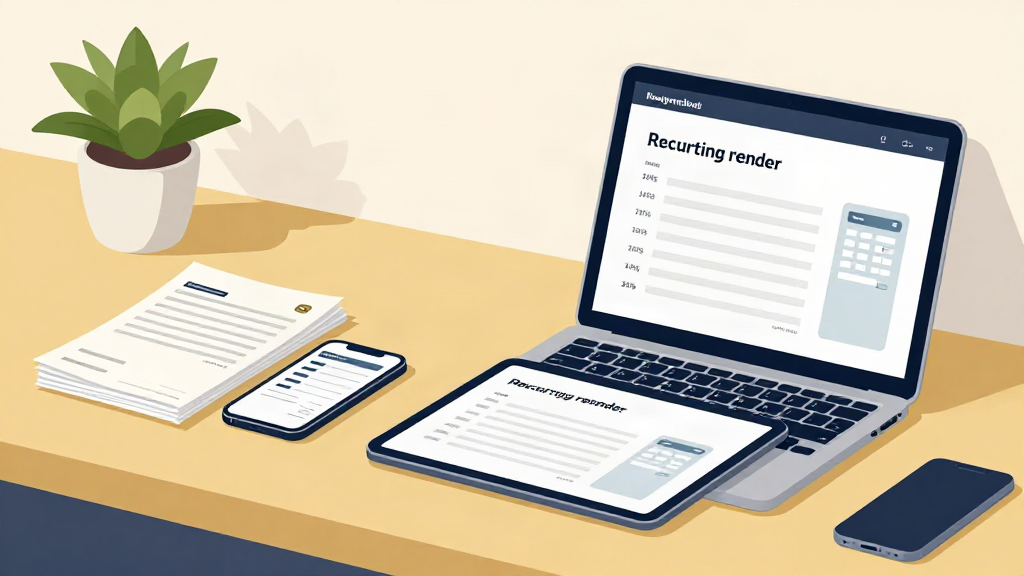
Open ThriftyOwl on whichever device you are holding - phone, tablet or desktop, it is the same app - and add a new recurring bill. Give it a clear name you will recognise at a glance, enter the typical amount, choose the account it comes out of, and set how often it repeats.
For variable bills like energy, set the reminder against the account rather than a fixed figure. The important part is the date. The amount is context; the date is the thing that stops you paying late.
Step 2: How far ahead should you set the warning?
Three to five days' notice suits most bills, though the right lead time depends on the bill. That is the sweet spot: enough time to move money across, not so early that the reminder stops feeling relevant. For annual renewals such as insurance, set the warning several weeks out so you have room to shop around before it auto-renews.
You can also set reminders to repeat on their own cycle, so a quarterly water bill does not need re-entering four times a year.
Step 3: How do you know each bill is covered?
Watch your cash flow alongside the dates. Reminders tell you what is coming; cash flow forecasting tells you whether it is covered. ThriftyOwl's forecasting view projects your balance forward using the recurring bills you have entered, so you can see the pinch points before they arrive - the week where the car service and the quarterly energy bill land together, for example.
This is where reminder software stops being a to-do list and starts being genuinely useful. It is the difference between knowing a bill is due and knowing you can pay it comfortably.
Step 4: Check reminders on all your devices
One of the quiet advantages of a cloud-based app is that the same reminders follow you. Set a bill up on your laptop in the evening and it is waiting on your phone the next morning. Add something on your tablet in the kitchen and it appears on your desktop at work.
That matters because bills do not care which device you are near. Having one place to manage household finances - rather than a spreadsheet on one machine - is what keeps the system honest.
Step 5: How often should you review your reminders?
Once a month, for about ten minutes. Once your bills are set up, the routine becomes light. Set aside ten minutes at the start of each month to:
- Confirm the reminders fire on the right dates
- Update any amount that has changed
- Delete subscriptions you have cancelled
- Add anything new
Ten minutes a month is a fair trade for never paying a late fee again.
Is your bill data safe in ThriftyOwl?
Yes. Household finances are sensitive, and it is reasonable to ask where your data lives. ThriftyOwl is built with bank-grade security, your data stays yours, and there are no ads - ever. You are not paying for the app with your attention or your information, and there is no charge to use it.
Your next step
Start with the three bills that have caught you out most often in the past year. Add them today, set your reminders, and let the app handle the dates from here. You can build out the rest of your household finances at your own pace - the point is to get the reminders running now, so the next due date takes care of itself.
Sources and further reading
- Direct Debit Guarantee, directdebit.co.uk - providers must give advance notice of changes to the amount, date or frequency of a Direct Debit.
- Citizens Advice, "If you're struggling to pay your mobile phone, internet or TV bill" - what happens if you miss a payment, and why to contact your provider early.